This guide explains how to create an API key for your Bitget Unified Trading Account (UTA) and connect it to CryptoRobotics.
1. Log In to Bitget
- Visit the official Bitget website.
- Log in to your account or sign up if you do not have one.
2. Upgrade to a Unified Trading Account
To connect Bitget UTA, your exchange account must be upgraded to a Unified Trading Account.
If you already use UTA, skip to the next section.
If you have a Classic account:
- Stop your active trading tools from opening new trades.
- Wait for your existing positions to close or close them manually.
- On Bitget, open Assets.
- Select Upgrade to Unified Trading Account.
- Follow the on-screen instructions and confirm the upgrade.
The upgrade usually takes about one minute. Trading and fund transfers will be temporarily unavailable during this time. Wait until Bitget confirms that the upgrade is complete.
Bitget’s step-by-step upgrade guide
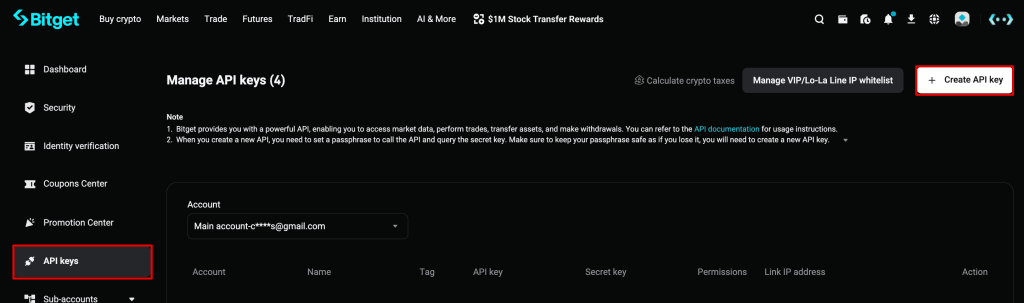
3. Open API Key Management
- Click the profile icon in the upper-right corner of the Bitget website.
- Select API Keys.
- Click Create API Key.
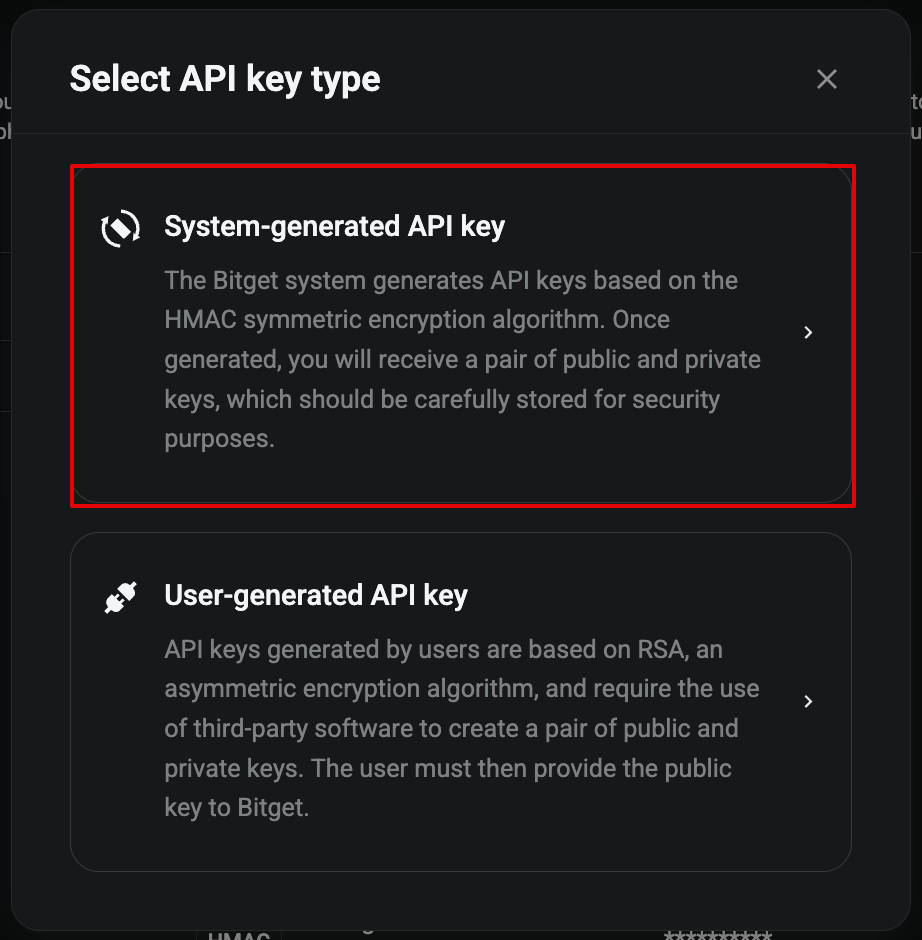
- Select System-generated API Key.
4. Configure Your API Key
- In the Note field, enter a name, such as CryptoRobotics UTA.
- Create and save a Passphrase. You will need it when connecting the key to CryptoRobotics.
- Under permissions, select Read and write.
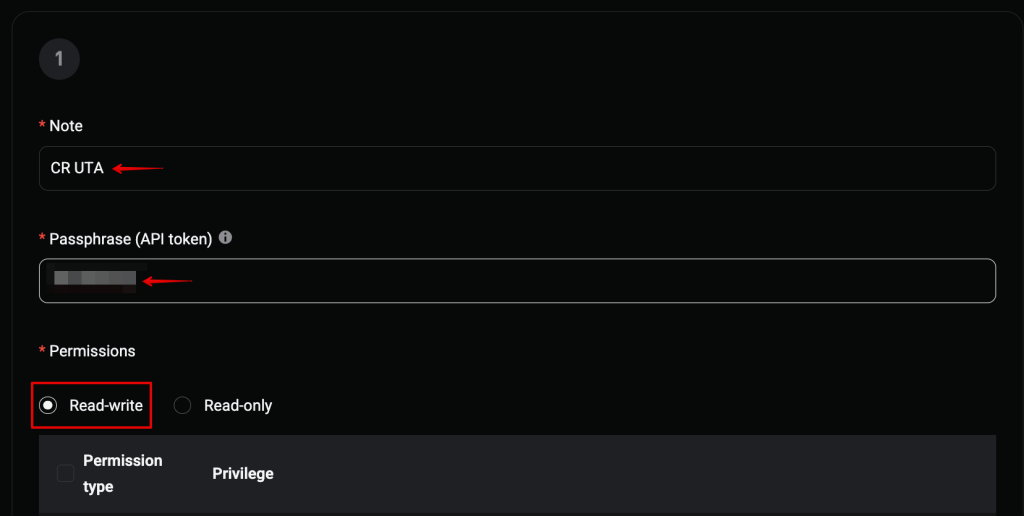
The API passphrase is a separate password you set when creating the key. Use this passphrase when connecting to CryptoRobotics, not your Bitget account password.
5. Configure Permissions
Enable the following permissions for your Unified Trading Account:
| Permission | Access level |
|---|---|
| Unified account trade | Read and write |
| Unified account manage | Read and write |
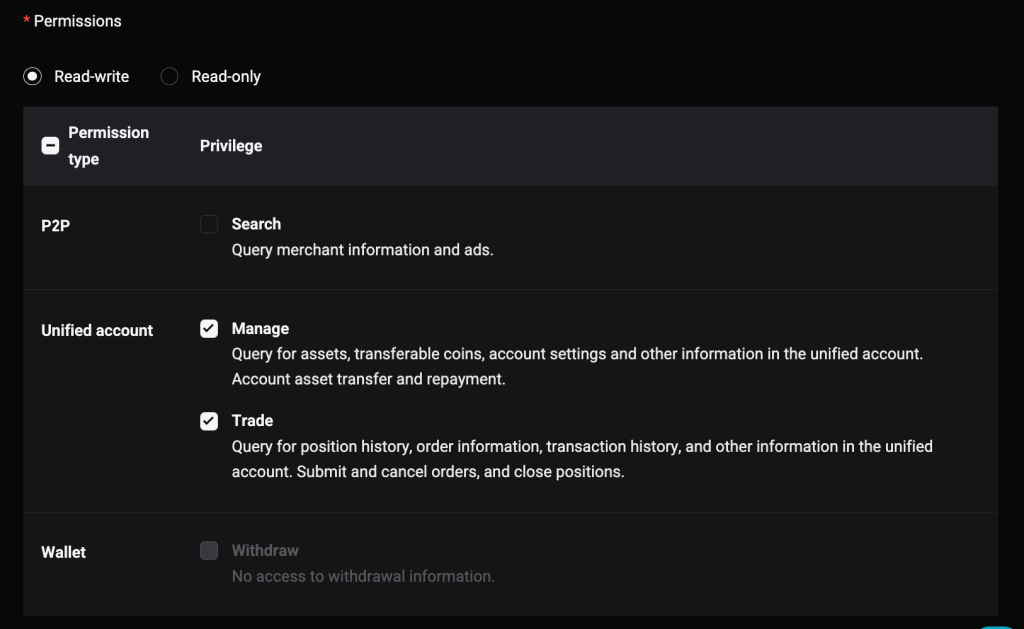
These permissions allow CryptoRobotics to retrieve account information, place and cancel orders, and configure trading settings.
The names of these options may vary slightly depending on your Bitget interface language.
Do not enable withdrawal permission. It is not required for trading through CryptoRobotics.
In the Link IP Address field, enter the following addresses, separated by commas:
185.141.195.71,185.141.192.50,185.141.195.244

6. Confirm and Save Your Key
- Confirm key creation using the security verification methods requested by Bitget, such as codes from your authenticator app and email.
- Once the key is created, save:
- API Key;
- Secret Key;
- Passphrase — the passphrase you set when creating the key.
The Secret Key is displayed only when the key is created. Store your credentials securely and do not share them in messages, including with support.
7. Connect Your Key to CryptoRobotics
- Log in to CryptoRobotics.
- Open Exchange Accounts.
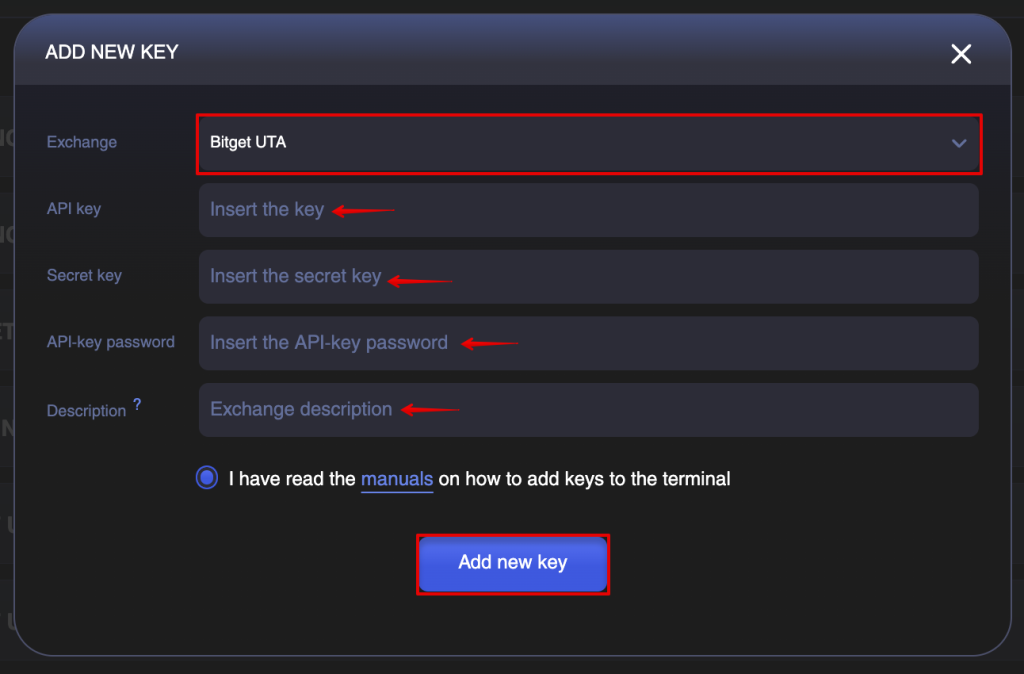
- Click Add New Key.
- Select Bitget UTA from the exchange list.
- Fill in the following fields:
- API Key — your Bitget API key;
- Secret Key — your secret key;
- API-key password — your API passphrase.
- Enter an account description so you can easily identify it in the list.
- Click Add New Key.
Once connected, select the account when configuring your trading tools.